
How to organize the video files on your Mac

The desktop and Downloads folder on a Mac get cluttered fast, don’t they? Photos sent over AirDrop, email attachments, screenshots. Are the videos you actually care about buried somewhere in that pile too?
Videos bought directly from creators on Patreon, Gumroad, or BOOTH, for example. A Zoom webinar or an online course, or a meeting recording you meant to go back to. A video that came as a perk from a campaign for an artist you follow. Home videos shared with you over Messenger or LINE.
It’s a shame to buy or record something and then be unable to find it, or to have no idea what’s in it until you press play. This article covers some ways of thinking about organizing the video files that have piled up on your Mac.
Why you can’t tell what’s what
Important videos get buried for reasons that go beyond simply being bad at tidying up.
- First, the save location and the filename differ depending on where the file came from. Both are decided by whoever provides the file, so files following a different convention for each platform gradually get mixed in together.
- Second, the filename doesn’t describe the contents. A name that’s nothing but a serial number or a string of symbols tells you nothing until you play it.
- And third, metadata that lives outside the filename, such as the creator or the cast, isn’t kept anywhere. Which work this is, which episode, how far you watched: none of that is visible in the Finder. So if you want to be able to find things on your own Mac, you have to supply that information yourself.
Step 1: gather everything into a single folder
The first thing to do is collect the videos scattered around your Mac under a single folder. Rather than searching the desktop, the Downloads folder, iCloud, and Google Drive one by one, build one place that you can look in and see everything at once.
My recommendation is to keep everything at a single level. If there are so many files that the view gets unwieldy, though, it’s fine to add a level of subfolders named after the platform or creator you got the videos from. Even then, stop at two or three levels and don’t build a deep taxonomy. The finer the categories, the more often you have to decide which one a file belongs in, and the more decisions there are, the sooner you stall.
Step 2: use filenames that tell you the contents
Next, rename your files so you can tell what they are without playing them.
- Put whatever you’ll remember when you go looking later, such as a date or a title, into the name.
- Write sequences as
010203rather than123. With a single digit, some apps sort10before2. - In the Finder, you can select several files, right-click, and choose Rename to replace text or add sequential numbers across all of them at once.
You don’t have to rename everything in one go. When there are a lot of files, working through the ones you revisit most is plenty.
Step 3: use an app to manage your videos
There will be things you want to record that don’t fit in a filename: the cast, the series, whether you’ve watched it, a few words on what you thought. A notes app or a spreadsheet like Excel or Numbers is fine to start with. The more videos you have, though, the more work that upkeep becomes.
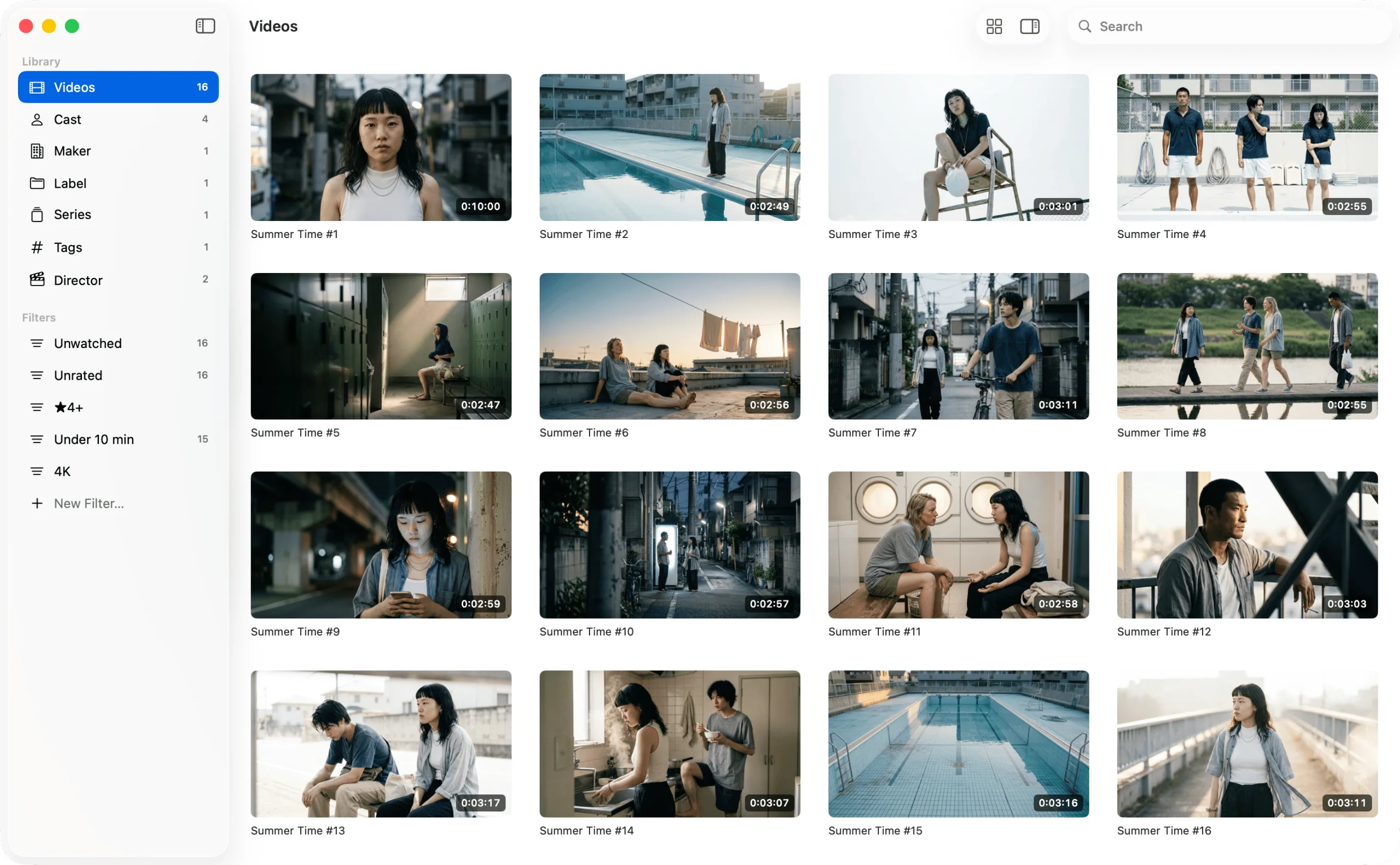
So try an app built to manage videos. The Photos app that comes with macOS and services like Google Photos are easy to reach for, but videos are large files, and anything that syncs to the cloud brings storage limits to worry about. GRFR is an app for organizing and searching the video files you keep on your Mac. Everything stays on your Mac, so there are no cloud storage limits to think about and nothing is sent anywhere.
Organize the video files on your Mac
GRFR is an app for organizing and searching the video files you keep on your Mac. Add metadata such as titles, cast, and tags so you can revisit your favorites again and again, and enjoy browsing them as a wall of thumbnails.
Requires macOS 26 or laterFree, with in-app purchases
FAQ
Is GRFR free to use?
Yes. Every feature is available for free. Only when you want to import more than 99 videos do you need to buy the Unlimited license inside the app, and that is a one-time purchase rather than a subscription. Take your time trying it out, and consider upgrading if you find you want to keep going.